Showing posts with label Apache. Show all posts

Friday, 12 July 2013

Recompiling apache

Posted by Sarath On Friday, July 12, 2013 No comments
Method 1: Recompilation from WHM
===========================
1. Login to the WHM of the server as user root.
2. Go to Software >> EasyApache (Apache Update)
3. Select a profile to load and click "Start customizing based on profile".
4. Select the Apache version and click next step.
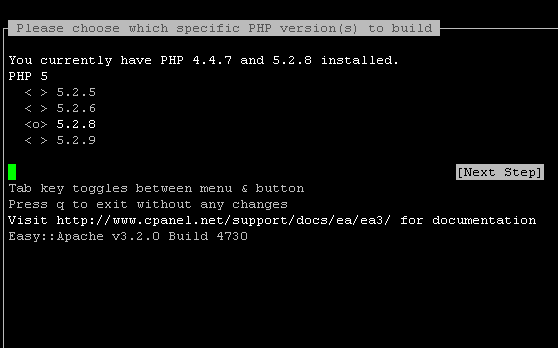
5. Select the Major PHP Version and click next step.
6. Select the PHP Minor Version and click next step.
If you are going to enable Apache/PHP modules, it is recommended to leave the default versions of Apache & PHP.
7. Enable the required modules. If the required modules are not listing, click "Exhaustive Options List" and select the modules.
8. Click "Save and Build".

Method 2: Recompilation using cPanel script /scripts/easyapache
================================================
1. Login to the server as root via SSH.
2. From the command line execute the following cPanel script.
Code: [Select]
# /scripts/easyapache
(It is highly recommended to run rebuild in screen)
3. Select "Start customizing based on profile".
4. Select the Apache version and click next step.
5. Select the PHP Version and click next step.
In our case we are going enable PHP modules and so it is recommended to leave the default versions of Apache & PHP.
6. Enable the required modules. If the required modules are not listing, click "Exhaustive Options List" and select the modules.
7. Click "Save and Build".

Done..!!

Tuesday, 2 July 2013

Testing mod_rewrite

Posted by Sarath On Tuesday, July 02, 2013 No comments
If you face issues in getting rewrite rules of your website to work, first check if mod_rewrite is installed/enabled.
# httpd -l | grep rewrite

If mod_rewrite is installed on the server, you will get the following output :

  mod_rewrite.c

If it is not installed, then you will have to recompile apache with mod_rewrite enabled. In cPanel servers, you can do that using easyapache (/scripts/easyapache). Once installed then comes the testing part. To test mod_rewrite, simply add the following code to .htaccess file of your website:

RewriteEngine on
RewriteRule ^testpage\.html http://google.com [R]
Once the .htaccess file has been updated, enter the following into your browser:
www.yoursite.com/testpage.html replace yoursite.com with your website name. If mod_rewrite is working fine, then the page will get redirected to Google.

That's it.. :)

Sunday, 30 June 2013

Dual PHP Kloxo - CentOS

Posted by Sarath On Sunday, June 30, 2013 No comments
I came across a situation this week where a client wanted to install Zend Optimizer on his VPS as his website needed it. But the default PHP version installed on the server was PHP 5.3 and Zend Optimizer works only with PHP versions upto 5.2. So we had two options in front of us to resolve the issue, either install  5.2 from source or advice the client to recompile his application with Zend guard loader which is the replacement for Zend Optimiser in PHP 5.3 and newer versions. (Applications compiled for Zend Optimiser won't work with Zend guard loader). As he don't wished to recompile his application, we went for the first option. That's to install PHP from source.
Some additional packages will be needed for the installation, so we will install them first :
# yum -y groupinstall "Development Tools"
# yum -y mysql-devel libtool-ltdl-devel bzip2-devel libcurl-devel libxml2-devel libmcrypt-devel curl-devel
Now download PHP package from www.php.net/downloads.php# cd /usr/local/src

# wget http://museum.php.net/php5/php-5.2.17.tar.bz2
# tar -xvzf php-5.2.17.tar.bz2
# cd php-5.2.17
Compile and install PHP

#./configure --prefix=/usr/local/php_52 --enable-cgi --with-config-file-path=/usr/local/php_52 --enable-ftp --enable-mbstring --with-openssl --enable-magic-quotes --with-zlib --with-bz2 --with-curl --with-gd --with-mcrypt --with-mysql --enable-zip --enable-libxml --with-gettext --with-gmp --with-iconv
# make clean
# make
# make install

Now we need to make apache to detect this installation. As its Kloxo we need to perform some additional tasks/modifications. First create a script,

# cd /var/www/cgi-bin
# vi php52-cgi
Add the below code :

#!/bin/sh
PHPRC="
/usr/local/php_52/"
export PHPRC
PHP_FCGI_CHILDREN=4
export PHP_FCGI_CHILDREN
PHP_FCGI_MAX_REQUESTS=5000
export PHP_FCGI_MAX_REQUESTS
exec
/usr/local/php_52/bin/php-cgi
Then save the file.# chmod +x php52-cgi
# cd ~
# ln -s /usr/local/php_52/bin/php-cgi /usr/local/bin/php52

Now we need to modify apache config
# cp -prf /etc/httpd/conf/httpd.conf /etc/httpd/conf/httpd.conf_org
# echo 'Enable PHP5.2 Handlers' >> /etc/httpd/conf/httpd.conf
# echo 'ScriptAlias /php52-cgi /var/www/cgi-bin/php52-cgi' >> /etc/httpd/conf/httpd.conf
# echo 'Action application/x-httpd-php52 /php52-cgi' >> /etc/httpd/conf/httpd.conf

But when we runs fixweb script, the additions to httpd.conf will get deleted. So, we need to modify fixweb script

# cp /script/fixweb /script/fixweb.orig
# vi fixweb
Add the below code :

#!/bin/sh

. /script/fix.inc

. /script/directory
lphp.exe ../bin/fix/fixweb.php $*

#Reinstate php5.2 handlers
echo 'Enable PHP5.2 Handlers' >> /etc/httpd/conf/httpd.conf
# echo 'ScriptAlias /php52-cgi /var/www/cgi-bin/php52-cgi' >> /etc/httpd/conf/httpd.conf
# echo 'Action application/x-httpd-php52 /php52-cgi' >> /etc/httpd/conf/httpd.conf

service httpd restart

Then save the file.
# mv fixweb /script/fixweb
# chmod 700 /script/fixweb

Now add the following code in your website's .htaccess file :

<FilesMatch "\.php">
SetHandler application/x-httpd-php52
</FilesMatch>

That's all.. :)

Friday, 29 March 2013

Last month I came across a situation where all websites on a server were throwing Internal Server errors. Upon checking error logs I found "SecurityException in Application.cpp:188: Do not have root privileges. Executable not setuid root?" in the logs and a quick googling lead me to the cause of the error.

The error was because the suphp binary was missing its suid permissions and assigning it fixed the issue.
# chmod +s /opt/suphp/sbin/suphp
All good..!!